
Quick Answer: Transfer time equals file size in megabits divided by your connection speed in Mbps. Multiply megabytes by 8, divide by your speed, then add about 15% for overhead. The SyncFixPro Cloud File Size & Transfer Time Calculator does this instantly and compares your file across five connection speeds.
You have a 60 GB project folder to push to the cloud before Friday.
Your plan says 100 Mbps. Is that enough?
You start the upload and watch the progress bar crawl. Was it a fault or just the limit of your line?
I built this guide around a free calculator from SyncFixPro. It shows how long a transfer should take, then how long it will probably take once overhead is counted. It also helps you spot when a slow transfer is a connection limit instead of a fault.
Below you’ll find how to use it, the math behind it, and what to do when the real time is far worse than the estimate.
What Is a Cloud File Size & Transfer Time Calculator?
A cloud file size and transfer time calculator estimates how long a file takes to upload or download. It converts file size into bits, divides by your connection speed, and shows a theoretical time at full speed plus a real-world time that allows for overhead.
A transfer time estimate is defined as the time a file should take given its size and the speed of the connection.
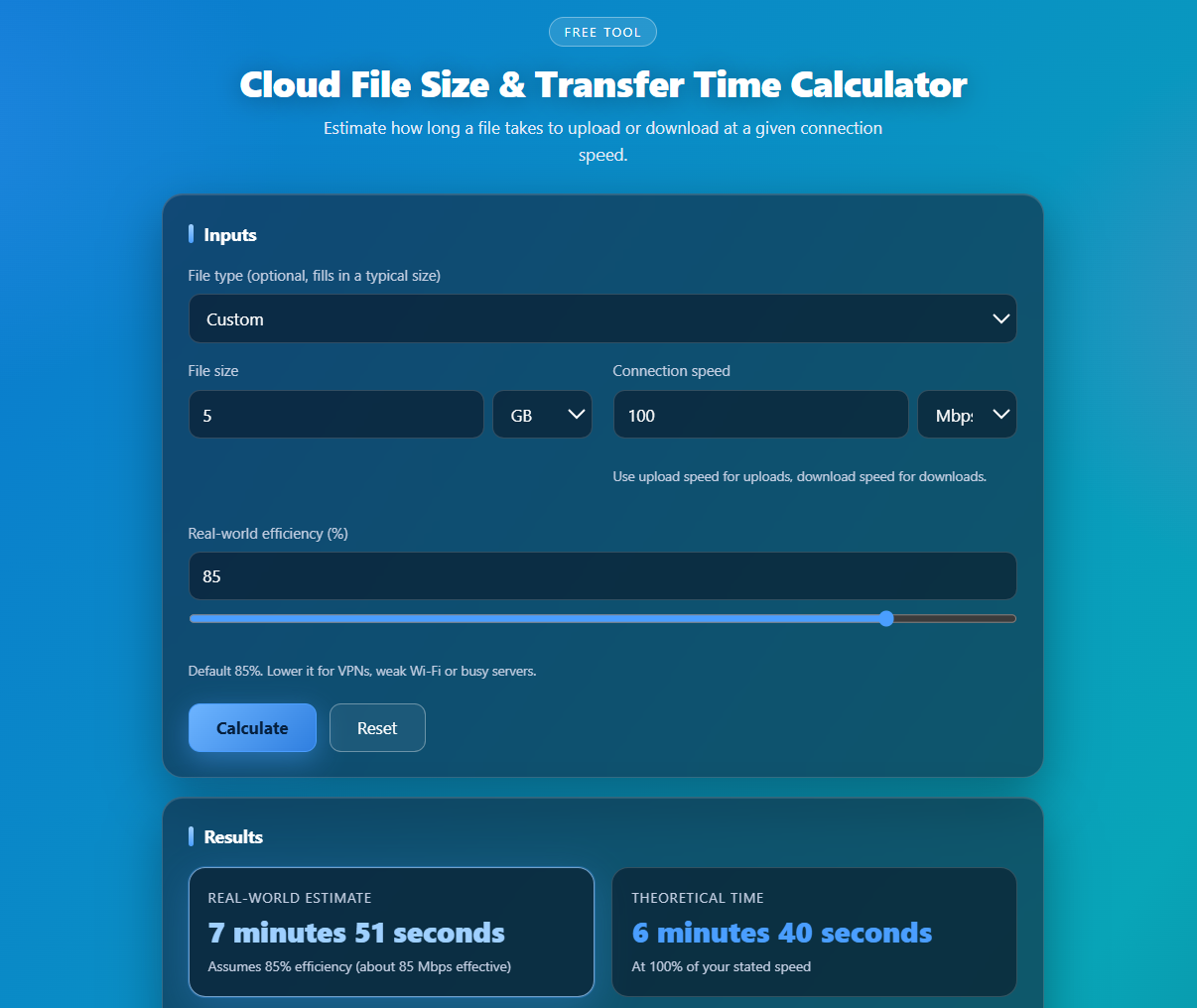
The SyncFixPro calculator takes:
- File size in MB, GB or TB
- Connection speed in Mbps or Gbps
- Optional presets for common files such as 4K video, RAW photos and database backups
It returns two estimates, a table comparing your file at 10 Mbps, 50 Mbps, 100 Mbps, 500 Mbps and 1 Gbps, and the formula with your own numbers filled in. It updates as you type, and you can copy the results with one click.
Everything runs in your browser. Nothing is sent to a server, stored or tracked.
Why Does Cloud Transfer Take Longer Than the Calculator Says?
Real transfers run slower than the theoretical time because of overhead, congestion, server limits and disk speed. The calculator’s real-world estimate applies an 85% efficiency factor by default, so a transfer that takes 60 minutes at full speed shows as about 71 minutes.
Several things stack up.
Bits versus bytes. Internet speeds are quoted in megabits, and file sizes in megabytes. A 100 Mbps connection moves about 12.5 MB per second at best.
Upload is slower than download. Many home plans offer far less upload than download speed. Use your upload speed for uploads.
Overhead. Overhead, congestion, server limits and disk speed all add time beyond the theoretical floor.
Your local setup. Wi-Fi, a VPN and background sync apps can each cut your effective speed.
The cloud service. Google Drive, OneDrive and Dropbox can cap or slow individual transfers.
That’s why the tool shows two numbers. The theoretical time is the floor. The real-world time is the planning number.
How Do You Use the Cloud File Size & Transfer Time Calculator?
To use the calculator, enter your file size and connection speed, or pick a preset, then read the theoretical and real-world estimates. Use your upload speed for uploads and your download speed for downloads, and adjust the efficiency if your results differ.
- Find the exact file size. Right-click the file or folder and open Properties. Note whether it’s MB, GB or TB.
- Enter your connection speed. Run a speed test and use the upload figure for uploads. Use the download figure for downloads.
- Or choose a preset. The presets cover 4K video, RAW photos and database backups. Replace the preset size with your real size if you know it.
- Read both estimates. The theoretical time is the best case. The real-world time is the one to plan around.
- Check the comparison table. It shows the same file at 10 Mbps, 50 Mbps, 100 Mbps, 500 Mbps and 1 Gbps. This is how you decide whether an upgrade is worth paying for.
- Adjust the efficiency. The default is 85%. If you often see slower transfers, such as on Wi-Fi or a VPN, lower it.
- Copy the results. Use the one-click copy to paste the estimate into a ticket or a message to a client.
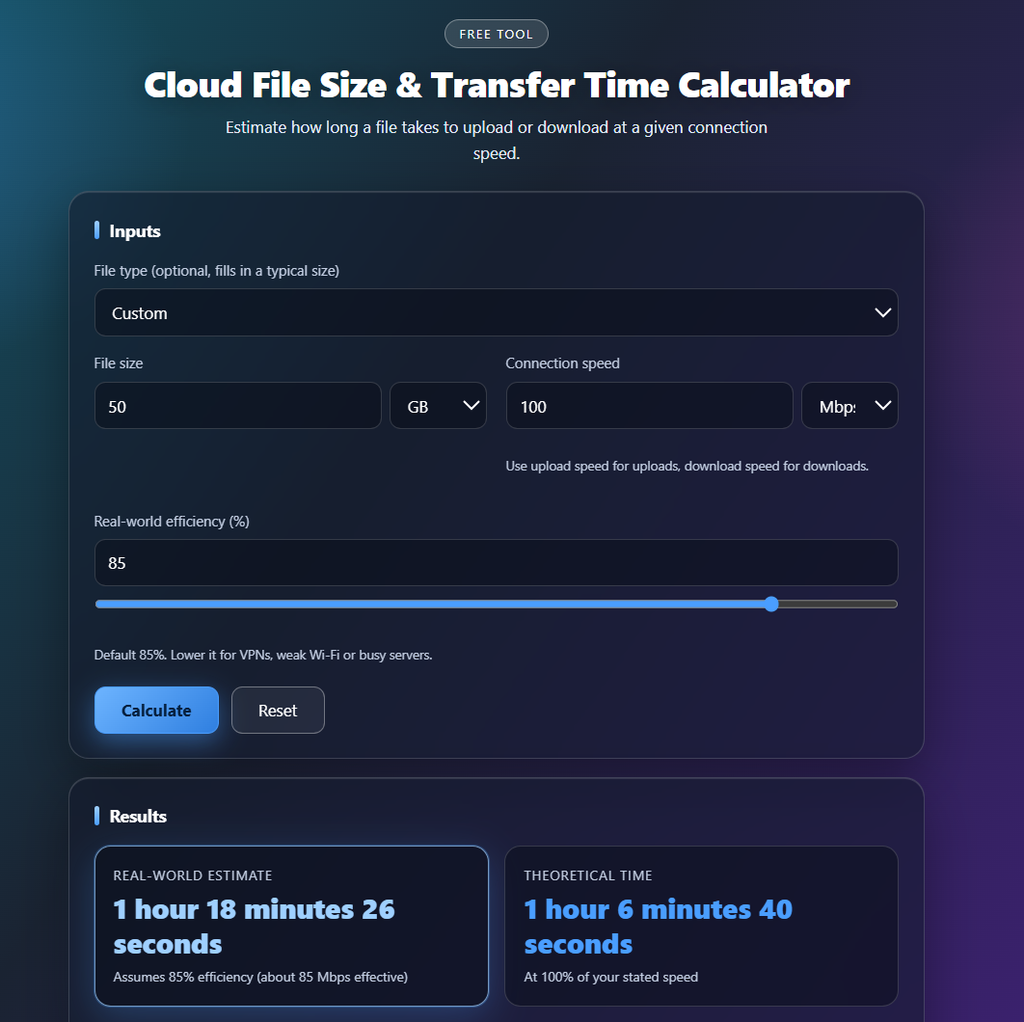
Here is a 50 GB file across the five speeds, at the default 85% efficiency:
| Connection | Theoretical time | Real-world time (85%) |
| 10 Mbps | 11 h 6 min | 13 h 4 min |
| 50 Mbps | 2 h 13 min | 2 h 37 min |
| 100 Mbps | 1 h 6 min | 1 h 18 min |
| 500 Mbps | 13 min | 15 min |
| 1 Gbps | 6 min | 7 min |
Going from 100 Mbps to 1 Gbps cuts a 50 GB transfer from about 78 minutes to about 8. Going from 10 Mbps to 50 Mbps saves over ten hours.
Method 2: How Do You Calculate Transfer Time by Hand?
To calculate transfer time by hand, multiply the file size in megabytes by 8, divide by your speed in Mbps to get seconds, then divide by 0.85 for a real-world estimate. This is the same formula the calculator shows with your numbers.
The formula:
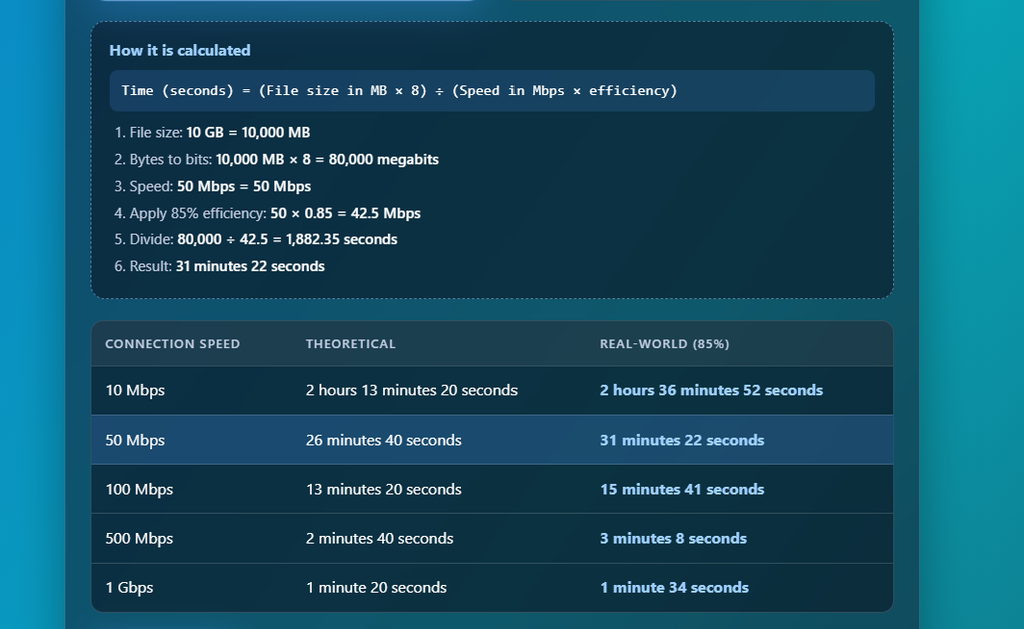
Time (seconds) = File size (MB) × 8 ÷ Speed (Mbps)
Worked example for a 10 GB file at 50 Mbps:
- 10 GB = 10,000 MB
- 10,000 × 8 = 80,000 megabits
- 80,000 ÷ 50 = 1,600 seconds, or 26 minutes 40 seconds
- Real-world: 1,600 ÷ 0.85 ≈ 1,882 seconds, or about 31 minutes
One caution on units. This guide uses 1 GB = 1,000 MB. Some tools use 1,024, which makes results about 2.4% longer for GB-sized files. Pick one and stay consistent when comparing numbers.
Method 3: How Do You Tell If a Slow Transfer Is a Fault or a Limit?
If your real transfer time is close to the calculator’s real-world estimate, you’ve hit a connection limit. If it’s far slower, something is wrong, such as Wi-Fi, a VPN, storage limits or sync errors. Compare the two before you start troubleshooting.
This is the most useful trick in the guide.
- Enter your measured upload speed into the calculator.
- Start a real transfer and time it.
- Compare the real time with the real-world estimate.
Beaming, a UK business ISP, gives sound advice here. If the calculator’s time is much quicker than the actual transfer, ask your provider whether you’re getting the speed you’re paying for. If the two match and it’s still too slow, you need a faster connection. beaming
If the real time is far worse, work through these:
- Switch from Wi-Fi to a wired connection.
- Test with the VPN off, then on. Our guide to Google Drive slow upload VPN fix has a timing routine for this.
- Check for a stall near the end. See Google Drive upload stuck at 99%.
- Check for sync client errors. For OneDrive, see OneDrive error 0x8007016A.
- Check split tunneling if you use a VPN. See NordVPN split tunneling not working.
How Do You Plan Large Cloud Transfers So They Don’t Fail?
To plan large transfers, calculate the time first, schedule long uploads off-peak on a wired connection, split huge folders into batches, and keep the computer awake. Verify file sizes in the cloud before deleting the originals.
Here is the routine I’d use:
- Estimate the time first with the calculator, using your real upload speed.
- Add a buffer. Use the real-world time and add more for a long transfer.
- Use a wired connection for anything over a few gigabytes.
- Keep the computer awake and stop other sync apps from competing.
- Split huge folders into batches. One failure then costs you less.
- Verify before you delete. Check sizes and file counts in the cloud. If you’re moving files between machines instead, see How to transfer large ZIP files from Mac to Windows.
Conclusion
Use the calculator before you start a big transfer, not after it stalls. The gap between the real-world estimate and your actual time tells you whether you have a limit or a fault.
FAQ
It’s an estimate, not a promise. The default 85% efficiency suits many connections. Measure one real transfer and adjust the figure to match.
Mbps measures megabits and MB measures megabytes. Eight bits make a byte, so you multiply by 8. 100 Mbps is about 12.5 MB per second at best.
Yes. Enter your upload speed for uploads and your download speed for downloads.
No. The calculator runs in your browser. Nothing is sent to a server, stored or tracked.
Start at 85%. Lower it for Wi-Fi, a VPN or a busy network, and raise it only if your measured transfers beat the estimate.
At full speed, about 22 hours 13 minutes. At 85% efficiency, about 26 hours 9 minutes. That’s why large uploads need planning.