
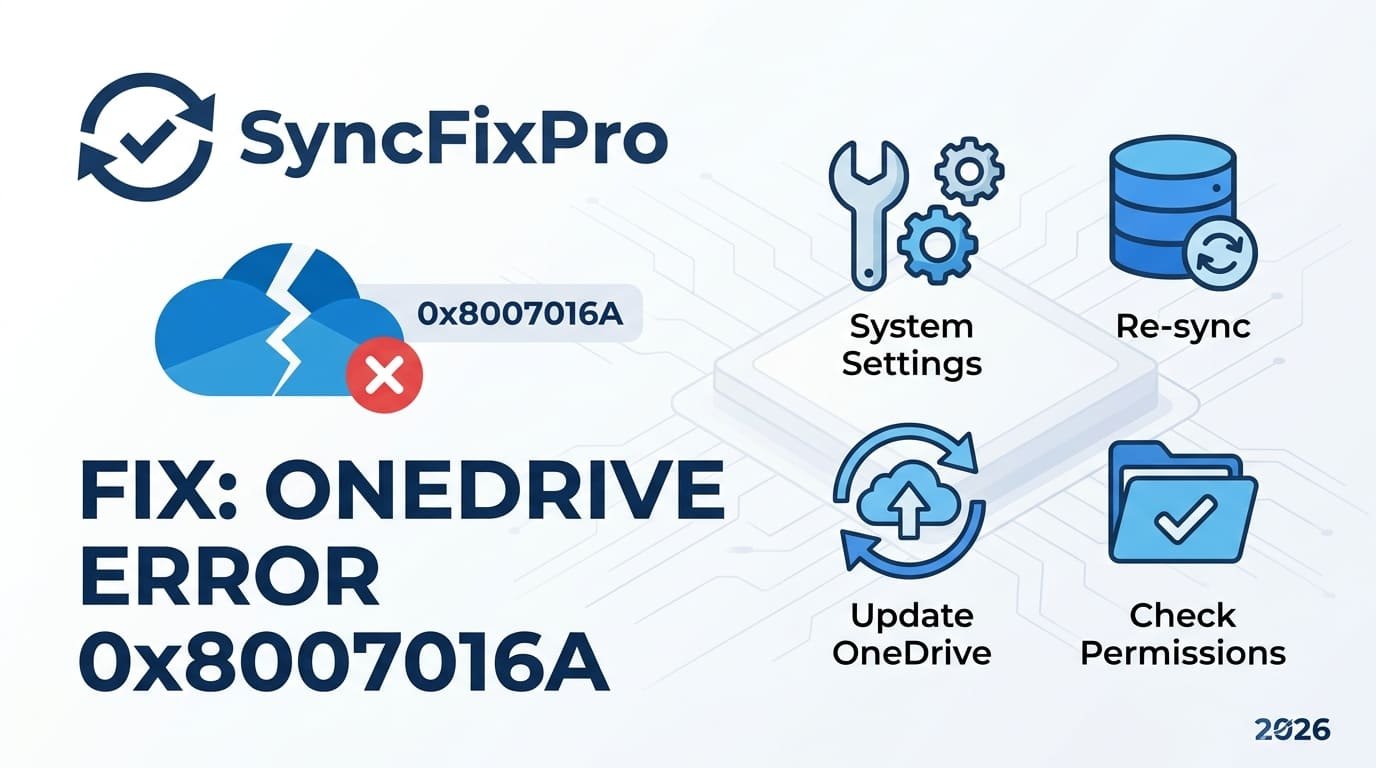
Quick Answer: OneDrive error 0x8007016A means "The cloud file provider is not running." It usually appears when Files On-Demand is on, sync is paused, or OneDrive's settings are corrupted. Restart OneDrive and resume sync first. If that fails, turn off Files On-Demand, update Windows, then reset OneDrive.
You open a file from your OneDrive folder. Instead of the document, Windows shows a dialog: “Error 0x8007016A: The cloud file provider is not running.”
The file might show as 0 KB. File Explorer might freeze or show the wrong sync status.
You restart the laptop. The error comes back.
For remote workers this is more than an annoyance. A deadline file stuck behind an error dialog costs real time.
This guide explains what the error means, why it happens, and three fixes in order of effort. It finishes with prevention steps and answers to common questions.
What Is OneDrive Error 0x8007016A?
OneDrive error 0x8007016A is a Windows error that reads “The cloud file provider is not running.” It appears when OneDrive’s background service, which handles Files On-Demand, fails to run, so Windows can’t open files that are stored online only.
The cloud file provider is defined as the component that makes online-only OneDrive files appear in File Explorer as if they were on your drive.
When it stops, Windows can’t fetch those files. You may see:
- The error dialog when you open a file
- Files showing 0 KB
- File Explorer freezing or showing incorrect file statuses
The error typically appears on Windows systems with Files On-Demand enabled. Reports cover both Windows 10 and Windows 11.
Why Does OneDrive Error 0x8007016A Happen?
The error happens when the cloud file provider can’t start or keeps stopping. Reported causes include Files On-Demand being enabled, sync being paused, corrupted OneDrive settings, corrupted files stuck in sync, battery saver mode, and a Windows bug.
Here is what each cause looks like in practice.
Files On-Demand is on. The feature depends on the cloud file provider, so this is where the error shows up.
Sync is paused or disabled. If sync isn’t running, the provider may not start properly.
Corrupted OneDrive settings. Damaged preferences can stop the service from starting.
A corrupted file or folder. One bad file can get stuck mid-sync and trigger the error for the files around it.
How Do You Fix OneDrive Error 0x8007016A?
To fix OneDrive error 0x8007016A, restart OneDrive, resume syncing, turn off Files On-Demand, check battery saver, and update Windows. Test after each step so you know which one worked. Most cases are solved before you reach a full reset.
Work through these in order. Menu names change between OneDrive versions, so check each against your own screen.
- Restart OneDrive. Click the cloud icon in the system tray, open Help & Settings (the gear), and choose Quit OneDrive. Then open OneDrive again from the Start menu. This clears a provider that failed to start at boot.
- Resume syncing. If sync is paused, click the cloud icon and choose Resume syncing. Wait for the sync status to settle before testing a file.
- Turn off Files On-Demand. Open OneDrive Settings, go to Sync and backup → Advanced settings, and switch Files On-Demand off. OneDrive then begins syncing your files to the local drive. Make sure you have enough disk space first.
- Check battery saver. On a laptop, go to Settings → System → Power & battery and turn Battery saver off. Then restart OneDrive.
- Update Windows. Open Windows Update, install everything pending, and restart. If a Windows bug is interfering with OneDrive, this is the fix.
Test the result. Open the file that failed. If it opens and the size is no longer 0 KB, you’re done.
Method 2: How Do You Reset OneDrive?
Resetting OneDrive restores the app to its default settings and fixes corrupted preferences, one of the main causes of error 0x8007016A. It doesn’t delete your files, but OneDrive will re-sync everything afterwards, which can take a while.
Use this if the first five steps didn’t work.
- Press Win + R to open the Run dialog.
- Paste this command and press Enter:
%localappdata%\Microsoft\OneDrive\onedrive.exe /reset - If Windows says it can’t find the file, try one of these instead:
C:\Program Files\Microsoft OneDrive\onedrive.exe /reset
C:\Program Files (x86)\Microsoft OneDrive\onedrive.exe /reset - Wait a minute or two. The cloud icon disappears from the tray, then comes back.
- If it doesn’t come back, open OneDrive manually from the Start menu.
Expect a full re-sync. On a large library this can run for hours, so don’t do it right before a deadline.
Method 3: What Are the Advanced Fixes?
If a reset fails, the cause is usually a corrupted file or folder, or a damaged OneDrive install. Reinstall OneDrive, or move the affected folder’s contents out and let OneDrive re-sync them. Confirm the files exist online before moving anything.
These take longer, so save them for last.
Check the online copy first. Before you move or delete anything, open OneDrive in your browser and confirm the affected files are there. If they are, the local copy is the problem.
Isolate the corrupted folder. If the error only hits one folder, a damaged file inside it may be stuck mid-sync. Move that folder’s contents out of the OneDrive folder, let OneDrive finish syncing, then restore the files in batches. That shows you which file causes the stall.
Reinstall OneDrive. Uninstall it under Settings → Apps, restart, then download and install the current version from Microsoft.
Repair Windows system files. This is general Windows repair, not an official OneDrive step. Open Command Prompt as administrator and run sfc /scannow, then DISM /Online /Cleanup-Image /RestoreHealth. Restart afterwards. Only try this if the error persists after a reinstall.
How Do You Prevent OneDrive Error 0x8007016A in the Future?
To prevent error 0x8007016A, keep Windows and OneDrive updated, avoid leaving sync paused, keep battery saver off on laptops, and set critical folders to “Always keep on this device.” Check your sync status before a deadline, not during one.
Here is what I’d do on any work machine:
- Keep OneDrive and Windows updated. Both can carry bug fixes for this error.
- Don’t leave sync paused. Paused sync is a reported trigger.
- Pin your critical folders. Right-click a folder in File Explorer and choose Always keep on this device. Those files don’t depend on the cloud file provider to open.
- Watch battery saver. If you work unplugged all day, check it hasn’t throttled OneDrive.
- Back up what matters. Keep a second copy of work-critical files somewhere other than OneDrive.
Conclusion
Error 0x8007016A is almost always a stopped cloud file provider. Restart OneDrive, resume sync, turn off Files On-Demand, then reset if needed. Pin your critical folders so it can’t block you again.
FAQ
It means OneDrive’s background service for Files On-Demand isn’t running. Windows can’t open files that exist only online until it restarts.
No. A reset clears OneDrive’s settings and sync state, then re-syncs. Back up anything critical first anyway.
Yes. It has been reported on both.
No. It’s a sync service error, not malware. Ignore any pop-up that claims your PC is infected and tells you to call a number.
Only if you have the disk space. With it off, your whole OneDrive library is stored locally. If space is tight, keep it on and pin only your critical folders.
A 0 KB size can mean the file hasn’t synced properly. Check the online copy in your browser before moving or deleting anything.
3 thoughts on “OneDrive Error Code 0x8007016A — Complete Troubleshooting Guide (2026)”