
Quick Answer: The fastest method is a local network transfer. On your Mac, open System Settings > General > Sharing, turn on File Sharing, and enable SMB. Then open File Explorer on Windows, type \\your-mac-ip-address in the address bar, and copy the ZIP file across. If the two computers are not on the same network, use an external drive formatted as exFAT.
By the SyncFixPro Team | Updated October 2026
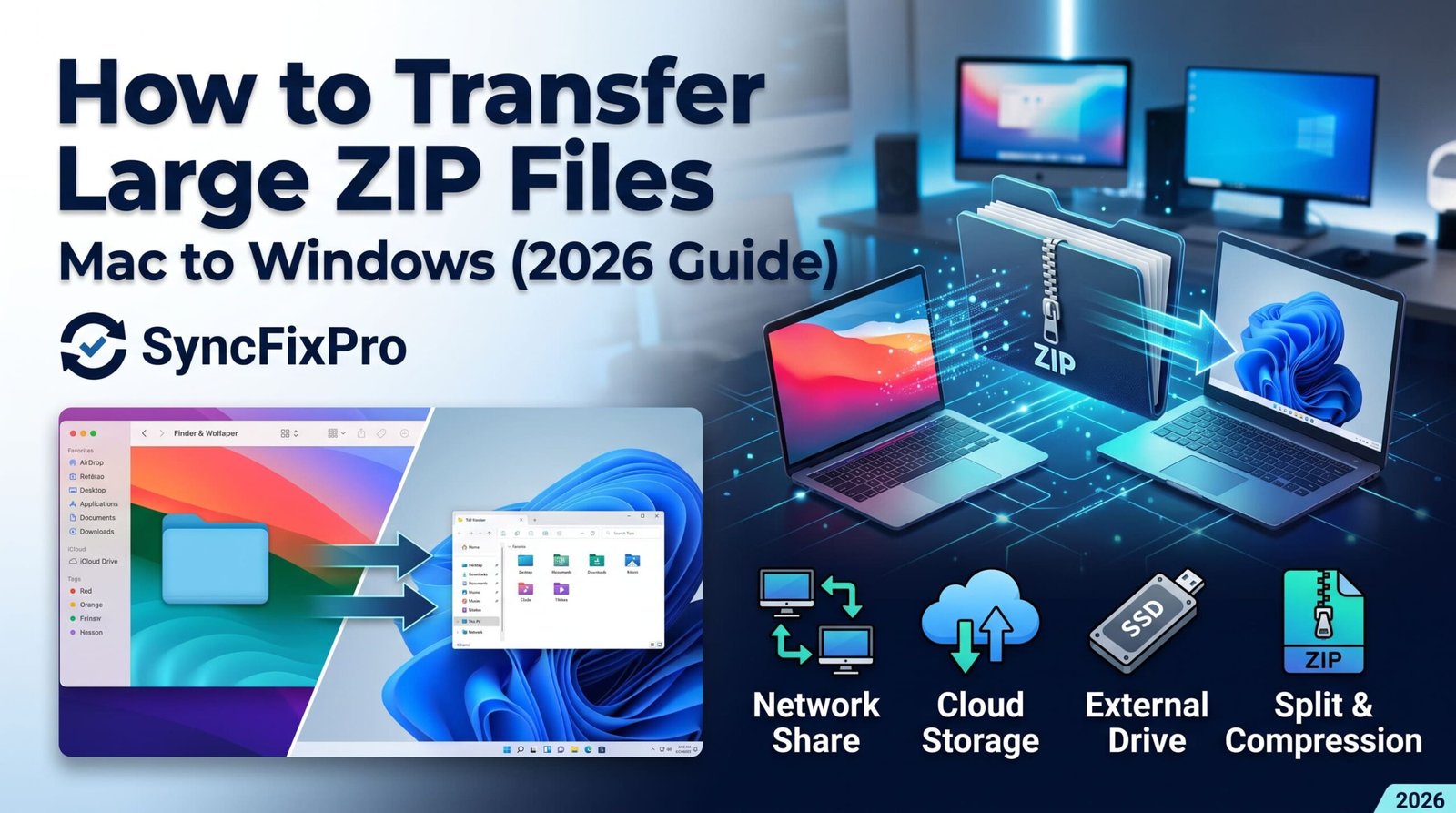
Introduction
You finished a 12 GB ZIP file on your Mac. Now you need it on a Windows PC. You try email, and it bounces. You try a chat app, and it stalls at 40%. You copy it to a USB stick, and Windows says the file is too large for the destination.
These failures are common, and they have clear causes. Each tool in the chain has its own limit: email caps attachments at 20 to 25 MB, FAT32 drives cap files at 4 GB, and Wi-Fi drops interrupt long uploads.
This guide covers four reliable ways to move large ZIP files from a Mac to a Windows PC, plus advanced fixes for when none of them work. It is written for remote workers who send project folders, video exports, and backups between machines.
Why Do Large ZIP File Transfers Fail Between Mac and Windows?
Large ZIP transfers fail because of file size limits, incompatible drive formats, and unstable connections. FAT32 drives refuse files over 4 GB. Email and chat apps cap uploads at small sizes. Wi-Fi drops or sleeping computers interrupt long copies, which leaves a half-written, corrupted ZIP file.
Three causes account for most failed transfers:
- Drive format mismatch. macOS uses APFS and Windows uses NTFS. Each system cannot fully write to the other’s format. FAT32 works on both, but it limits every file to 4 GB.
- Service size limits. Email, messaging apps, and free cloud tiers all set a maximum upload size.
- Interrupted copies. A Mac that goes to sleep or a Wi-Fi signal that drops mid-transfer leaves a broken file. Windows then reports an error when you try to extract it.
Method 1: Transfer via Local Network (Fastest for Large Files)
A local network transfer means copying files directly between two computers on the same router, without uploading anything to the internet. Speed depends on your network, not your internet plan. A wired or Wi-Fi 6 connection moves a 10 GB file in a few minutes.
This method works on macOS Sonoma 14, Sequoia 15, and Tahoe 26, and on Windows 10 and Windows 11.
On the Mac:
- Click the Apple menu and choose System Settings.
- Go to General > Sharing.
- Turn on File Sharing.
- Click the info (i) button next to File Sharing, then click Options…
- Check Share files and folders using SMB, and check the box next to your user account. Enter your Mac password if asked, then click Done.
- Under Shared Folders, click the + button and add the folder that holds your ZIP file.
- Note the address shown under File Sharing. It looks like smb://MacBook-Pro.local. You can also find your IP address in System Settings > Wi-Fi > Details… > TCP/IP.
On Windows:
- Make sure the PC is on the same Wi-Fi network or connected to the same router.
- Open File Explorer.
- Click the address bar, type \\MacBook-Pro.local (or \\192.168.1.25 using your Mac’s IP address), and press Enter.
- Enter your Mac username and password when prompted. Select Remember my credentials if you plan to repeat this.
- Open the shared folder and drag the ZIP file to your Windows desktop or Downloads folder.
Keep the Mac awake during the copy. Open System Settings > Lock Screen and set Turn display off on power adapter when inactive to a longer time or plug the Mac into power.
If this method fails to connect, see NordVPN split tunneling article. An active VPN often blocks local network devices from finding each other.
Method 2: Use Cloud Storage as a Bridge
Cloud storage as a bridge means uploading the ZIP file from your Mac, then downloading it on Windows. It works from any location and needs no shared network. The downside is speed: you pay for the upload time and the download time.
Check the single-file limit before you start. These limits are accurate at the time of writing, but confirm them on each provider’s help page, since they change:
| Service | Single-file limit |
| Google Drive | 5 TB (needs enough free space) |
| Microsoft OneDrive | 250 GB |
| Dropbox (desktop app) | 2 TB |
| iCloud Drive | 50 GB |
Free plans also limit total storage. Google Drive gives 15 GB free, so a 12 GB ZIP file leaves little room for anything else.
Steps using Google Drive:
- On your Mac, go to drive.google.com and sign in.
- Click New > File upload, then select your ZIP file. Alternatively, install Google Drive for desktop and drop the file into the Google Drive folder in Finder.
- Wait until the upload shows a green check mark. Do not close the browser tab or put the Mac to sleep.
- On the Windows PC, open drive.google.com, right-click the file, and click Download.
- Chrome saves the file to your Downloads folder. Check that the file size matches the original.
The same steps work in OneDrive, which is built into Windows 10 and 11, and in Dropbox. For a Dropbox transfer, use the desktop app, not the website, because the browser upload limit is much lower.
If an upload freezes near the end, read Google Drive upload stuck at 99% article. If uploads crawl while a VPN is on, read Google Drive slow upload VPN article.
Method 3: External Drive with exFAT Format
exFAT is a file system that both macOS and Windows can read and write, with no practical file size limit. An external SSD or hard drive formatted as exFAT is the most dependable offline method. It needs no network and no account.
Formatting erases the drive. Back up anything on it first.
Format the drive on your Mac:
- Plug in the drive.
- Open Disk Utility (Finder > Applications > Utilities).
- Click View > Show All Devices.
- Select the top-level drive in the sidebar, not the indented volume under it.
- Click Erase.
- Set Format to ExFAT and Scheme to GUID Partition Map.
- Name the drive and click Erase.
Copy the file:
- Drag the ZIP file from Finder onto the drive.
- Right-click the drive in Finder and choose Eject before unplugging it. Skipping this step can corrupt the file.
- Plug the drive into the Windows PC. Windows 10 and 11 read exFAT without extra software.
- Copy the ZIP file to the PC.
If your drive came formatted as NTFS, your Mac can read it but cannot write to it by default. Reformat to exFAT instead of buying third-party NTFS software. A portable SSD such as a Samsung T7 or SanDisk Extreme Portable SSD also copies much faster than a spinning hard drive.
Method 4: Direct USB-C or Thunderbolt Cable
A direct cable connection means linking the Mac and the PC with a cable, without a router or internet. A plain USB-C cable between the two computers does not create a file transfer link. The reliable approach is a direct Ethernet connection through USB-C adapters.
Thunderbolt Bridge works only between two Macs. Mac-to-Windows Thunderbolt networking is not dependable, so use Ethernet instead.
You need one Ethernet cable and a USB-C to Ethernet adapter for any computer that lacks an Ethernet port.
Steps:
- Connect the Ethernet cable between the Mac and the PC.
- On the Mac, open System Settings > Network, select the Ethernet adapter, and click Details… > TCP/IP.
- Set Configure IPv4 to Manually. Enter IP address 192.168.50.1 and subnet mask 255.255.255.0. Click OK.
- On Windows, open Settings > Network & internet > Ethernet. Next to IP assignment, click Edit, choose Manual, and turn on IPv4.
- Enter IP address 192.168.50.2, subnet mask 255.255.255.0, and click Save.
- Turn on File Sharing on the Mac, as shown in Method 1.
- On Windows, type \\192.168.50.1 in the File Explorer address bar and copy the ZIP file.
A gigabit adapter reaches roughly 110 MB/s in real use. A 2.5 GbE adapter on both ends is faster, if both computers support it.
If This Doesn’t Work: Advanced Fixes
Check file size limits
File size limit refers to the largest single file a drive, app, or service accepts. Check the destination first. FAT32 allows 4 GB per file. Email allows about 25 MB. Many chat apps allow 2 GB or less. If your ZIP file exceeds the limit, choose a method above that has a higher limit.
Also verify the file after copying. Run this on the Mac:
shasum -a 256 yourfile.zip
Then run this in Windows Command Prompt:
certutil -hashfile yourfile.zip SHA256
If the two long strings match, the file is intact. If they differ, copy it again.
Split the ZIP file
Splitting means cutting one large archive into smaller parts that you rejoin on the other side. This helps when a service or drive has a strict size cap.
On the Mac, open Terminal and run:
zip -s 3g -r split-archive.zip your-folder
This creates parts of 3 GB each. On Windows, install the free 7-Zip, open the first part (split-archive.zip), and extract it. Keep every part in the same folder.
You can also create split archives in 7-Zip itself. Right-click the file, choose 7-Zip > Add to archive…, and enter a size under Split to volumes, bytes.
Use a dedicated transfer tool
Dedicated transfer tools handle large files and resume after interruptions. Options include:
- LocalSend: free and open source. It sends files between devices on the same network with no account.
- Resilio Sync: peer-to-peer sync that resumes after dropped connections.
- Send Anywhere: uses a one-time code to send files between any two devices.
- WeTransfer: browser-based sending with a download link.
Install the tool on both computers, then follow its pairing steps. Check each tool’s current free-plan limits before relying on it for very large files.
Conclusion
For large ZIP files, start with a local network transfer, because it is the fastest and needs no extra gear. Use an exFAT drive when you are offline, and a cloud service when the computers are far apart. Compare checksums after any big transfer to confirm the file is intact.
FAQ
Use a local network transfer (Method 1) if both computers share a router. It needs no upload and no storage plan. If they are in different places, use an exFAT external drive or a cloud service with a single-file limit above 20 GB.
Yes. Windows 10 and 11 open Mac ZIP files in File Explorer. Right-click the file and select Extract All…. Large archives can fail in File Explorer, so use 7-Zip if you see an error. You may also see a hidden __MACOSX folder. It holds Mac metadata, and you can delete it.
A corrupted ZIP file usually means the transfer was cut short or the drive was unplugged without ejecting. Compare checksums on both computers, as shown in the advanced fixes. If they differ, transfer the file again.
exFAT is better. FAT32 refuses any single file larger than 4 GB, while exFAT has no practical limit. Both work on macOS and Windows.