
Quick Answer: A Google Drive upload stuck at 99% usually means the file has mostly arrived and the last step is stalling. Check that data is still moving, keep the tab active, then retry in an incognito window or another browser. If it still hangs, change your network path (turn a VPN off or on, or switch to mobile data) and re-upload.
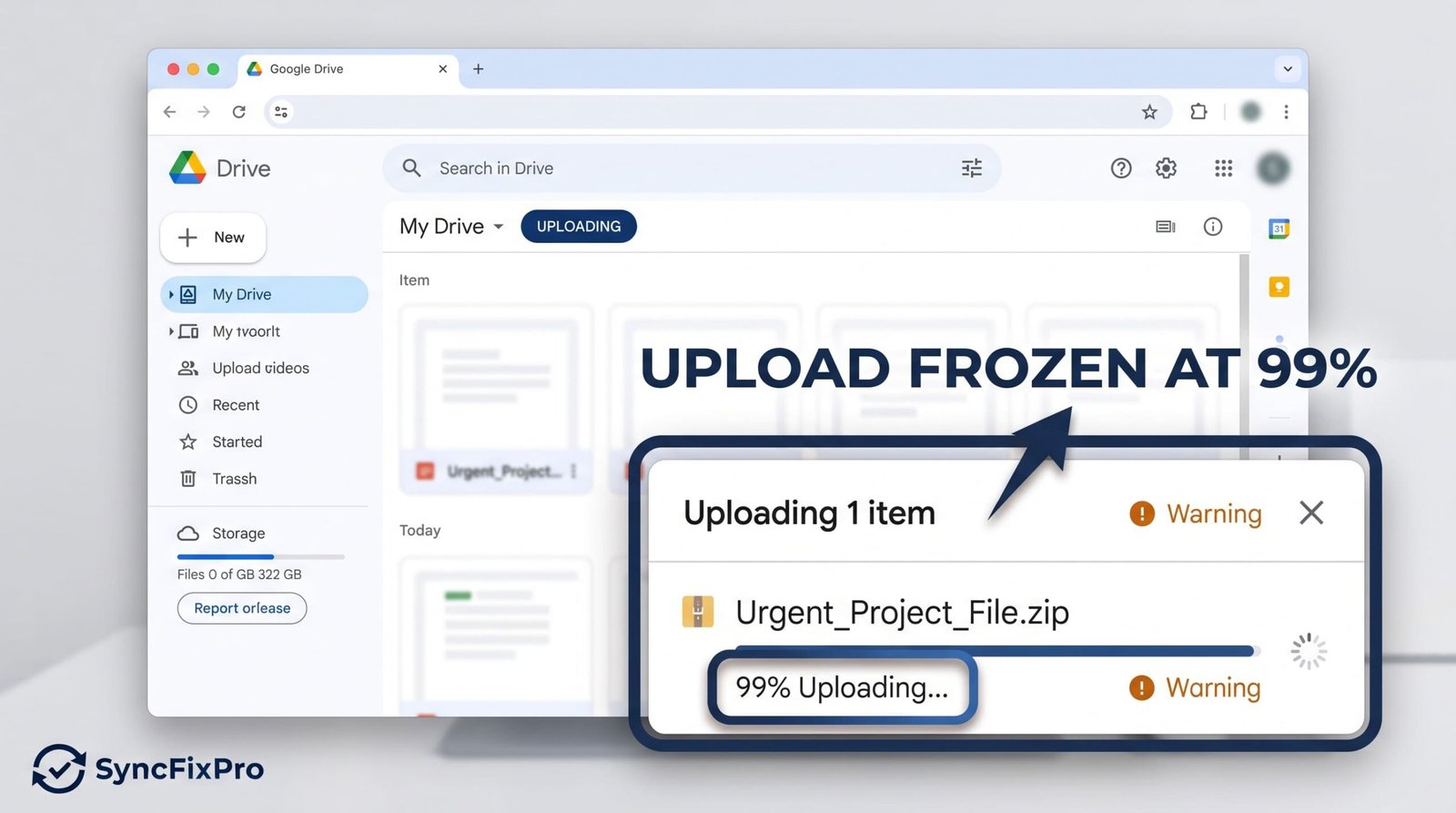
You drag a big file into Google Drive. The progress bar races to 99%.
Then it stops.
Ten minutes pass. Thirty. You can’t tell if it’s working, hung, or lost.
I’ve seen this on large video files, zipped project folders and exported databases. The cause is rarely the file itself.
This guide explains what the 99% stall is, why it happens and how to fix it, from the quickest check to the advanced options. It also covers how to avoid it next time.
What Is the Google Drive “Stuck at 99%” Problem?
The Google Drive 99% stall is an upload that shows almost complete but never finishes. The progress bar counts transferred data, and the final step, where the server confirms and stores the file, can hang or fail without showing an error message.
A stalled upload is defined as one where the progress indicator stops changing for an extended period.
At 99%, the file data has usually already reached the server. That matters, because the fix for a connection drop at 40% differs from the fix for a final-step failure at 99%.
One note on scope: this guide covers Google Drive in a browser or app. If you’re pushing data to Google Cloud Storage with the gsutil command-line tool and it hangs at 99%, that’s a different problem. A forum thread on that case suggests running gcloud components update, turning on debug verbosity and uploading in smaller chunks.
Why Does Google Drive Upload Get Stuck at 99%?
Uploads get stuck at 99% because of an unstable connection, a background browser tab, cached browser data, a full Drive quota, or a network path such as a VPN or firewall that interrupts the final handshake. Large files are more exposed because they take longer to finish.
Here is what each cause looks like.
A slow final step. For very large files, the last stretch can simply take longer than the bar suggests. A cloud-sync troubleshooting article describes the common “false alarm” where the last big file is still transferring slowly.
An unstable connection. A weak or unstable internet connection is one of the most common culprits behind stuck uploads.
The tab went to the background. Browsers throttle background tabs, which can stall long uploads.
Browser cache or extensions. Stored data can interfere with uploads, which is why clearing the cache and using incognito mode are standard fixes.
Storage quota. If your Drive is nearly full, a big upload can fail near the end. Check your quota before anything else.
Your network path. Stalls that happen on your home network but not on mobile data or a VPN point to something in your network route.
How Do You Fix Google Drive Upload Stuck at 99%?
To fix a Google Drive upload stuck at 99%, confirm data is still moving, keep the upload tab active, check your storage quota, then retry in an incognito window or a different browser. Test after each step so you can see which one worked.
Work through these in order.
- Check that bytes are still moving. Open your system’s network monitor, such as Task Manager → Performance → Ethernet or Wi-Fi on Windows. If upload traffic is still flowing, the transfer is working. Give it a few more minutes.
- Keep the tab active. Leave the Drive tab in the foreground and stop the computer from sleeping. Background throttling is a frequent cause for large uploads.
- Check your storage. Open drive.google.com/settings/storage and confirm you have room for the file. A full quota can stall the final step.
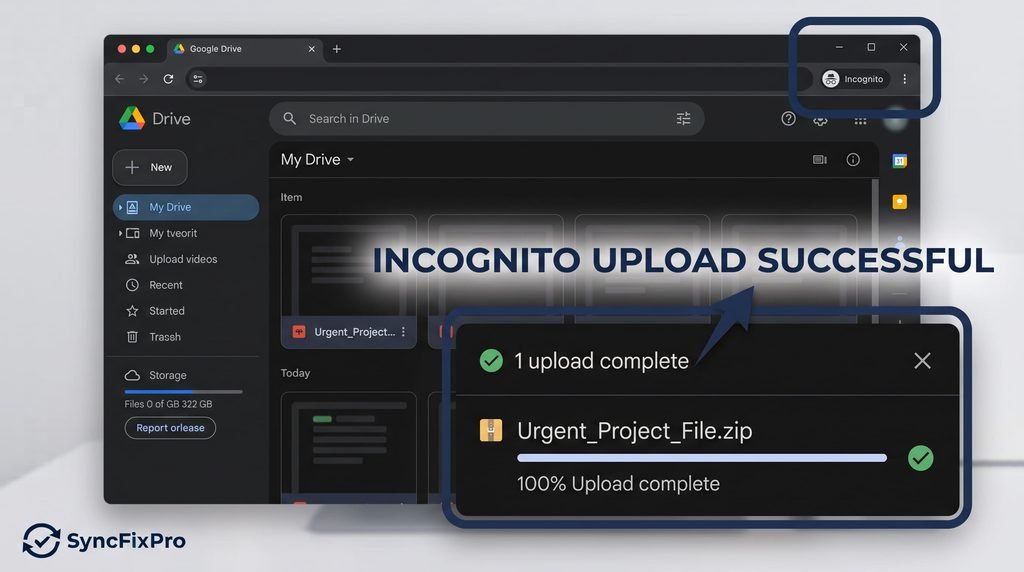
- Retry in an incognito window. Open a private window and sign in. Extensions and cached data don’t load there. If the upload completes, the problem is in your regular browser profile.
- Clear the browser cache. Clear cached files for Google Drive, restart the browser and try again.
- Try a different browser. Chrome stalls on big files can complete in Firefox, and the comparison tells you whether the browser is the cause.
- Cancel and re-upload. Cancel the stuck upload, wait a minute, and start again. Google Drive reportedly has no built-in way to resume a stuck upload, so a clean restart is often the quickest route.
Test the result. The file should appear in your Drive and open with the correct size. If a partial or zero-size file appears, delete it and upload again.
Method 2: How Do You Fix It by Changing Your Network Path?
If the upload stalls on one network but works on another, the issue is in your connection path. Toggle your VPN, switch to a different network such as mobile data, or restart your router, then upload again. This isolates whether the problem is your ISP route, VPN or firewall.
For remote workers this is the most useful test. Here is the order I’d use:
- Turn your VPN off, then try again. A VPN adds extra hops, and the final handshake can fail along them.
- Turn your VPN on if you’re normally off it. An upload that freezes on your home network sometimes completes through a VPN, so test both ways.
- Switch to a hotspot or mobile data. If the upload finishes there, your home network or ISP route is the problem.
- Restart your router. It clears stale connections.
- Check firewall or security software. Some corporate or antivirus tools inspect uploads and stall them.
If you use a VPN with per-app routing, see our guide on [NordVPN split tunneling not working].
Method 3: What Are the Advanced Fixes for Large Files?
For very large files, compress or split the file, use Google Drive for desktop instead of the browser, or use a dedicated transfer tool such as rclone. These handle long transfers more reliably than a browser tab.
When the browser keeps failing, switch tools.
Compress or split the file. Compressing the file before uploading is a standard fix. For huge archives, splitting them into smaller parts means a failure costs you less.
Use Google Drive for desktop. The desktop sync client runs outside the browser, so it isn’t affected by tab throttling. Drop the file into your synced Drive folder and let it upload in the background.
Use rclone for big transfers. rclone is a command-line tool that supports Google Drive, and RcloneView is a graphical front end for it. A write-up from the RcloneView team notes that a 99% stall is often the last large file finishing, and recommends watching the transfer speed. Their core features are free. I’d only suggest this for people comfortable with command-line tools.
Check Google’s current limits. Google publishes a daily upload limit and a maximum file size. Check the current figures in Google’s documentation before a bulk transfer.
How Do You Prevent Google Drive Uploads From Sticking at 99%?
To prevent 99% stalls, keep the upload tab in the foreground, check storage first, use Google Drive for desktop for large files, and upload on a stable wired connection. Split very large archives into smaller parts so one failure doesn’t cost the whole transfer.
Here is what I’d do on any work machine:
- Check free storage before a big upload.
- Use a wired connection for files over a gigabyte.
- Stop the computer from sleeping during long transfers.
- Use the desktop client for big files, not the browser.
- Split huge archives into smaller parts.
- Verify the upload. Check the file size in Drive before you delete the original.
Conclusion
A 99% stall usually comes from a slow final step, a throttled tab or a flaky network path. Check that data is moving, retry in incognito, then test your network. For huge files, use the desktop client.
FAQ
Usually the file data has arrived and the final step is stalling, or the connection dropped near the end. Check storage, keep the tab active and retry in incognito.
Check whether upload traffic is still flowing. If it is, give it more time. If the network has gone quiet for 15 minutes or more, cancel and restart.
Google Drive reportedly has no built-in resume feature. Cancel and upload again, or use Google Drive for desktop or rclone for large files.
It can. Some stalls happen on one network path but not another, so test with the VPN both on and off.
No. Your original stays on your computer. Don’t delete it until you’ve confirmed the Drive copy opens with the correct size.
Partly. On Android you can cancel the upload with the x icon, switch to a reliable Wi-Fi connection, clear the Drive app cache, or turn off “transfer files only over Wi-Fi.”
1 thought on “Google Drive Upload Stuck at 99% — Complete Troubleshooting Guide (2026)”