

Quick Answer: Open Command Prompt as administrator and run ipconfig /flushdns, then disable IPv6 on your network adapter and reconnect the VPN. If that doesn’t work, switch the VPN protocol or lower the MTU. Test with the VPN off first, so you know the fault is in the tunnel and not your connection.
Your VPN app says Connected. The green light is on.
But no website loads. Email won’t sync. OneDrive and Google Drive sit there doing nothing. You disconnect, and everything works. You reconnect, and it breaks again.
This is one of the most common remote-work VPN problems. The tunnel is up, but your traffic isn’t getting through it.
This guide fixes it in order, from the quickest commands to driver-level repairs.
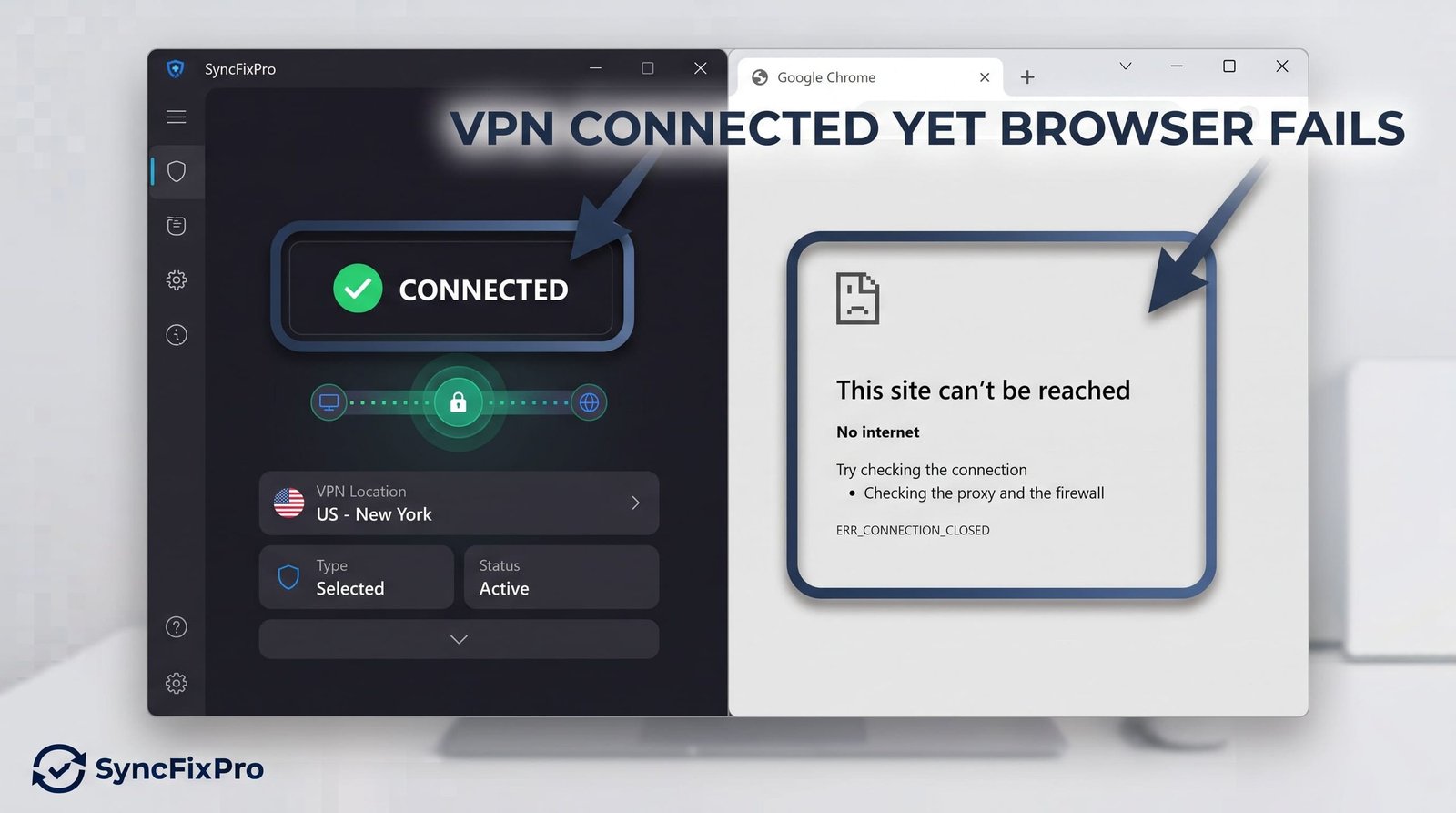
Why Does a VPN Show Connected But Block Internet?
A VPN shows connected when the encrypted tunnel is up, not when traffic is flowing. The usual breakpoints are DNS, routing, a blocked server or a stuck client. A fault in any one of them leaves the tunnel up while websites, email and cloud sync fail to load.
The “Connected” status only describes the tunnel. It doesn’t mean the internet works. The same source groups the causes into four layers: DNS, traffic routing inside the client, a blocked VPN server address, and a client stuck partway through the handshake.
Here’s how to tell them apart in 30 seconds:
Try another server. If the problem happens only on one server, switching to a different one is the best fix.
Test without the VPN. Check the internet with the VPN off first, which separates provider problems from tunnel problems.
Ping an IP address, then a name. Open Command Prompt, run ping 8.8.8.8, then ping google.com. If the first works and the second fails, DNS is the fault. That pattern, reachable addresses but failing websites, points to an unresponsive or misconfigured DNS server.
How to Fix VPN Connected But No Internet (Step-by-Step)
To fix a VPN that connects but has no internet, flush DNS and reset Winsock, disable IPv6, change the VPN protocol, check split tunneling, reset the network adapter and adjust the MTU. Test after each step so you know which one worked.
Work through these in order. Disconnect the VPN before each fix, then reconnect to test.
Method 1: Flush DNS and Reset Winsock
This clears stale name lookups and resets the Windows network stack.
Run these commands, one at a time:
- Click Start, type cmd, right-click Command Prompt and choose Run as administrator.
- Run these commands, one at a time:
ipconfig /flushdns

netsh winsock reset

netsh int ip reset
3.Restart your PC, then reconnect the VPN.
Method 2: Disable IPv6 on Your Network Adapter
Set up a work VPN by getting the server address, VPN type and sign-in method from IT, adding the connection in your VPN client or systemSome VPNs tunnel only IPv4. Leftover IPv6 traffic can then fail to resolve, which leaves pages hanging.
- Press Win + R, type ncpa.cpl and press Enter.
- Right-click your Wi-Fi or Ethernet adapter and choose Properties.
- Uncheck Internet Protocol Version 6 (TCP/IPv6) and click OK.
- Reconnect the VPN and test.
To undo it, tick the box again.
Method 3: Change VPN Protocol (OpenVPN TCP to UDP or WireGuard)
Some networks block certain VPN traffic. Windscribe’s support page suggests trying different protocol and port combinations if a network blocks VPNs.
- Open your VPN app’s settings.
- Find the Protocol or Connection setting.
- Switch between OpenVPN TCP, OpenVPN UDP and WireGuard (NordVPN calls its version NordLynx).
- Reconnect and test after each change.
Menu names vary by app. If a protocol change slows you down, our VPN Speed Loss Calculator shows how much speed you lose.
Explore our Free Tool
VPN SPEED LOSS CALCULATORMethod 4: Check Split Tunneling Settings
A wrong split tunneling list can send an app’s traffic outside the tunnel or cut it off.
- Open your VPN app’s Split Tunneling settings.
- Turn it off and reconnect.
- If internet returns, add apps back one at a time.
NordVPN offers split tunneling on Windows and Android only. If it misbehaves, see NordVPN split tunneling not working.
Method 5: Reset Network Adapter
Start with the light version, then escalate.
Light reset:
- Press Win + R, type ncpa.cpl and press Enter.
- Right-click your adapter, choose Disable, wait ten seconds, then Enable.
Full reset:
- Go to Settings → Network & internet → Advanced network settings → Network reset.
- Click Reset now and let the PC restart.
A full reset removes saved Wi-Fi networks. Note your passwords first, and expect to reinstall or reconfigure your VPN client.
Method 6: Adjust MTU Size
MTU is the largest packet your connection sends. A VPN adds overhead, and a packet that’s too large can be dropped. That gives you a tunnel that connects but won’t load pages.
- In Command Prompt, run ping google.com -f -l 1472.
- If you see “Packet needs to be fragmented,” lower 1472 by 10 and try again until it succeeds.
- Add 28 to that working number. That is your MTU.
- Find your adapter name with netsh interface ipv4 show subinterfaces.
- Set it, replacing the name and number:
netsh interface ipv4 set subinterface “Wi-Fi” mtu=1400 store=persistent
To restore the default, set mtu=1500.
If This Doesn’t Work: Advanced Fixes
If the standard fixes fail, test with the firewall off, remove conflicting VPN or proxy software, and reinstall the VPN adapter driver. Do each one on its own so you can see which change made the difference.
Disable Windows Firewall temporarily to test
Antivirus and firewall software can scan or block VPN interfaces. To test: windscribe
- Open Windows Security → Firewall & network protection.
- Select your active network and switch the firewall off.
- Reconnect the VPN and test.
- Turn the firewall back on right away.
If this fixes it, don’t leave the firewall off. Add an exception for your VPN app instead.
Check for conflicting VPN or proxy software
- Quit or uninstall any other VPN clients.
- Go to Settings → Network & internet → Proxy and turn off any proxy you don’t recognize.
- Reconnect and test.
For setups that need both a work VPN and a personal one, see our guide to setting up a VPN at home for remote work.
Reinstall the VPN adapter driver
- Right-click Start and open Device Manager.
- Expand Network adapters.
- Right-click your VPN’s adapter (often named TAP, Wintun or after your VPN) and choose Uninstall device.
- Reinstall the VPN client so it restores the driver, then restart.
Conclusion
Start with the 30-second test: VPN off, then ping an IP and a site name. Flush DNS and disable IPv6, then work down the list. Most cases are DNS, protocol or MTU.
Explore our Free Tool
VPN SPEED LOSS CALCULATORFAQ
Here are the related questions and their answers.
Still have more questions?
Contact us through our contact page or leave a comment.
Contact Us
2 thoughts on “VPN Connected But No Internet Access Windows 11 Fix (2026)”