
Quick Answer: Run the same Google Drive upload with your VPN off, then on, and compare the speeds. If the VPN makes uploads faster, your ISP route or throttling is the likely cause. If the VPN makes them slower, change the VPN protocol or server, or exclude Drive with split tunneling. If both are slow, fix your local network first.
Your speed test says 100 Mbps upload. Google Drive crawls at a fraction of that.
You switch on a VPN, and the upload speeds up. Or it goes the other way: the VPN is on and everything drags.
Both situations are real, and they need opposite fixes. Forum reports describe Google Drive uploads running far below speed-test results, then recovering when a VPN is turned on. Other people find the VPN is the bottleneck.
This guide shows you how to tell which one you have with a 10-minute test. Then it covers the fix for each, plus a policy warning remote workers shouldn’t skip.
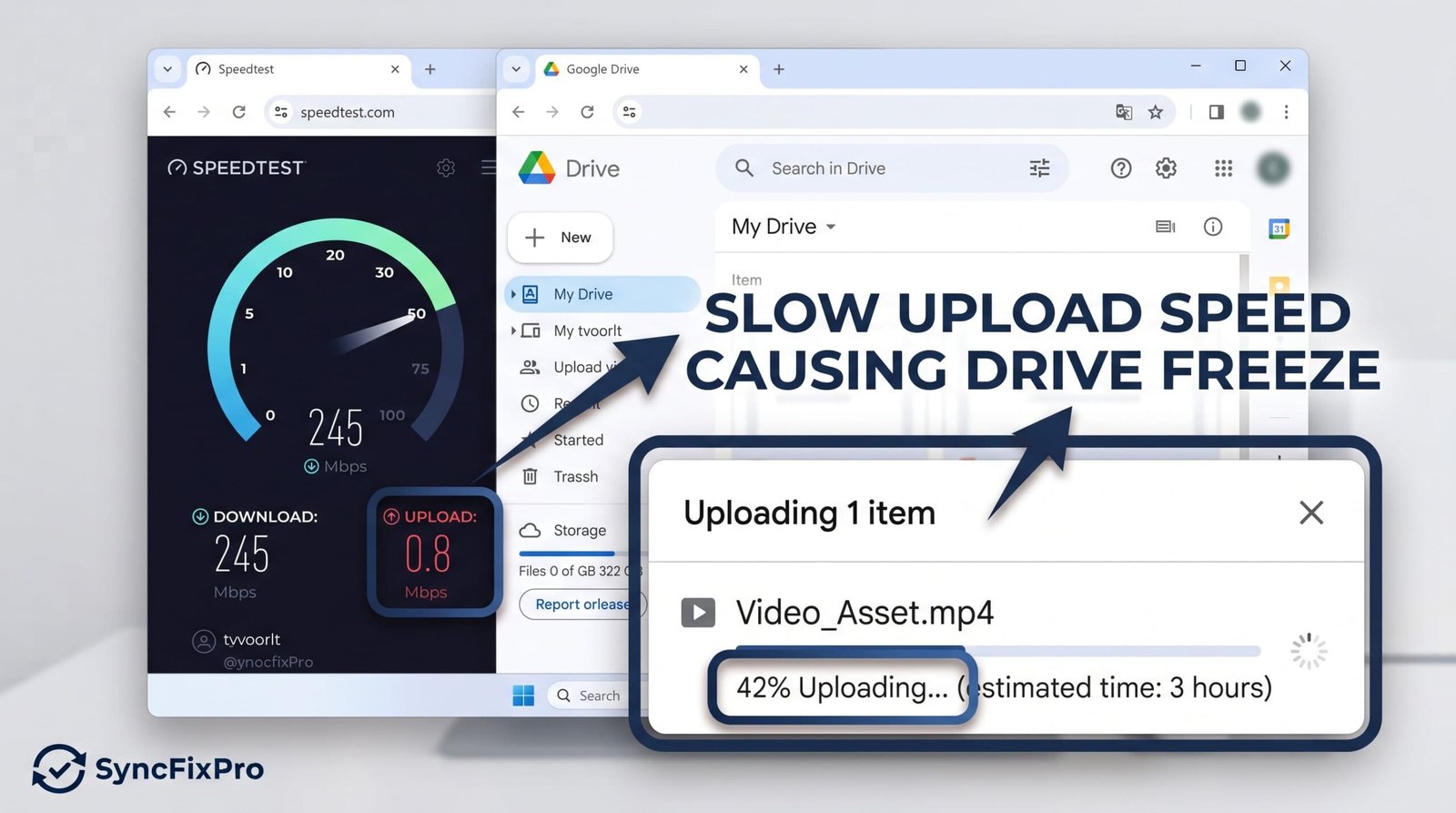
What Is the Google Drive Slow Upload Problem With a VPN?
The Google Drive slow upload problem is when uploads run far below your measured connection speed. A VPN can be the cause, by adding overhead, or the cure, by changing the route your traffic takes. A with-and-without comparison tells you which.
Slow uploads are defined as transfers that take much longer than your line’s rated upload speed predicts.
Many home connections offer much lower upload than download speed, so uploads are slow to begin with. The odd case is when a speed test looks fine but Google Drive is slow.
Reports of that pattern exist across providers. A UK broadband user described Drive uploads running about ten times slower than on their previous provider, while speed tests were normal. A VPN restored much faster uploads. A Dropbox community user reported the same pattern.
Treat that as a symptom, not proof. None of these posts confirms throttling, and one user on the same Dropbox thread saw no change with TunnelBear.
Why Does Google Drive Upload Slowly With or Without a VPN?
Uploads run slowly because of low upload bandwidth, Wi-Fi or router problems, full storage, browser or background-app interference, an unfavorable ISP route, or VPN overhead. A VPN can fix a bad route and still add its own slowdown.
Here is what each cause looks like.
Low upload bandwidth. Anything below about 10 Mbps upload makes Google Drive uploads take longer than people expect.
Router and Wi-Fi. A router that’s never restarted can eventually slow your whole network.
Storage. Drive storage is shared with Gmail and Google Photos, so a full quota can cause problems you don’t link to Drive.
Background apps and browser extensions. Other sync tools compete for bandwidth, and extensions can interfere with browser uploads.
Firewalls. Traffic inspection adds latency.
Route or throttling. A forum thread suggests that when a VPN helps, it may simply give you a different route, a peering issue, rather than prove throttling.
VPN overhead. Encryption and an extra hop cost speed. Some VPN modes also behave badly with sync tools. One Odrive user found that Astrill’s “OpenWeb” mode blocked outgoing sync while “OpenVPN” didn’t.
How Do You Fix Slow Google Drive Uploads?
To fix slow Google Drive uploads, time the same upload with the VPN off and on, then compare the results. Fix your local network if both are slow, and tune the VPN if only the VPN run is slow. Use the same file and the same time of day.
Start with a baseline.
- Time an upload with the VPN off. Use a file of about 500 MB. Note the seconds it takes.
- Time the same upload with the VPN on. Same file, same browser, same time of day.
- Calculate the speed. Use this formula: file size in MB × 8 ÷ seconds = Mbps. For example, 500 MB in 200 seconds is 20 Mbps.
Record it like this:
| Test | VPN ON | VPN OFF |
| Speed test upload (Mbps) | ||
| 500 MB Drive upload (seconds) | ||
| Calculated Speed (Mbps) |
Read the result:
- VPN on is faster: suspect your ISP route or throttling. Go to Method 3.
- VPN on is slower: the VPN is the bottleneck. Go to Method 2.
- Both slow: the problem is local. Continue below.
- Restart your router and use a wired connection. It rules out Wi-Fi.
- Check your Drive storage. Open the Storage page in Google Drive.
- Rule out the browser. Upload in an incognito window, clear the cache, or try the desktop app if the web version is slow. For stalled uploads, see our guide to Google Drive upload stuck at 99%.
- Close other sync apps. OneDrive, Dropbox and backup tools compete for the same upload bandwidth. If OneDrive misbehaves, see OneDrive error 0x8007016A.
Method 2: How Do You Fix a VPN That Slows Google Drive Uploads?
If the VPN run is slower, change the VPN protocol, pick a nearer server, or use split tunneling so Google Drive bypasses the VPN. Test after each change using the same timed upload.
Try these in order:
- Change the protocol. In your VPN app’s settings, switch between options such as NordLynx and OpenVPN. The Astrill case shows a protocol or mode can decide whether sync works at all.
- Pick a nearer server. Distance adds delay.
- Try split tunneling. Route Google Drive outside the VPN while keeping other traffic protected. On NordVPN this is available on Windows and Android only. If it misbehaves, see NordVPN split tunneling not working.
- Try a different VPN. Results vary by provider.
Method 3: How Do You Test for ISP Throttling or a Bad Route?
To test for throttling or a bad route, run the same upload on a different network, such as a mobile hotspot, then with and without a VPN on your home line. Faster results elsewhere point to your ISP’s route. Keep notes before contacting support.
This method is for the case where the VPN run was faster.
- Upload the same file on a second network. A phone hotspot or a friend’s connection works. One forum user confirmed their suspicion by uploading the same video on a friend’s connection with a different provider.
- Plug directly into your modem. This rules out your router and home setup. A forum thread on Drive speeds recommends it.
- Repeat with and without a VPN. Keep the file and time of day the same.
- Log everything. Dates, times, speeds and which network you used.
- Contact your ISP with the log. I can’t confirm throttling from the outside, but a clear log gives support something to work with.
A VPN fix also has a limit. If it only helps on your home line, it’s a workaround, not a cure.
How Do You Prevent Slow Google Drive Uploads?
To prevent slow uploads, schedule large transfers at off-peak times, use a wired connection, keep Drive storage free, and keep a speed log. Know your with-VPN and without-VPN baselines so you can spot a change quickly.
Here is what I’d do on any remote-work setup:
- Keep a baseline from the table above.
- Use a wired connection for large uploads.
- Keep an eye on storage.
- Restart your router now and then.
- Upload large files at off-peak hours.
- Retest after an ISP or VPN change.
Conclusion
Time the same upload with the VPN off and on. That one test tells you whether to fix your local network, tune the VPN or look into your ISP’s route. Keep the numbers in a log.
FAQ
Sometimes. Users report faster uploads after turning on a VPN, which may point to a routing or throttling issue. It isn’t guaranteed. One user saw no change.
Encryption and the extra hop add overhead. The protocol and server also matter. Test a different protocol and a nearer server.
Below about 10 Mbps upload, Drive transfers take noticeably longer than people expect. Compare your result with your plan’s rated upload speed.
You can’t be sure from your side alone. Test on a second network and keep a log of the results.
Check your IT policy first. Company devices and data often come with rules about VPNs, and routing work files through a personal VPN can break them.
If the VPN is slowing uploads, yes. If the VPN is what fixes the speed, keep Drive inside it. Split tunneling lets you choose per app on supported platforms.
1 thought on “Google Drive Slow Upload VPN Fix — Complete Troubleshooting Guide (2026)”