

Quick Answer: If remote desktop is not working over VPN, test with the host's IP address instead of its name, then check that port 3389 is reachable with Test-Net Connection. If the port is blocked or the connection times out, check the VPN’s routing, the firewall rule’s scope on the host, and the Windows 11 RDP transport setting. Forcing TCP-only often fixes the Windows 11 case.
You connect to the VPN. The client says you’re in.
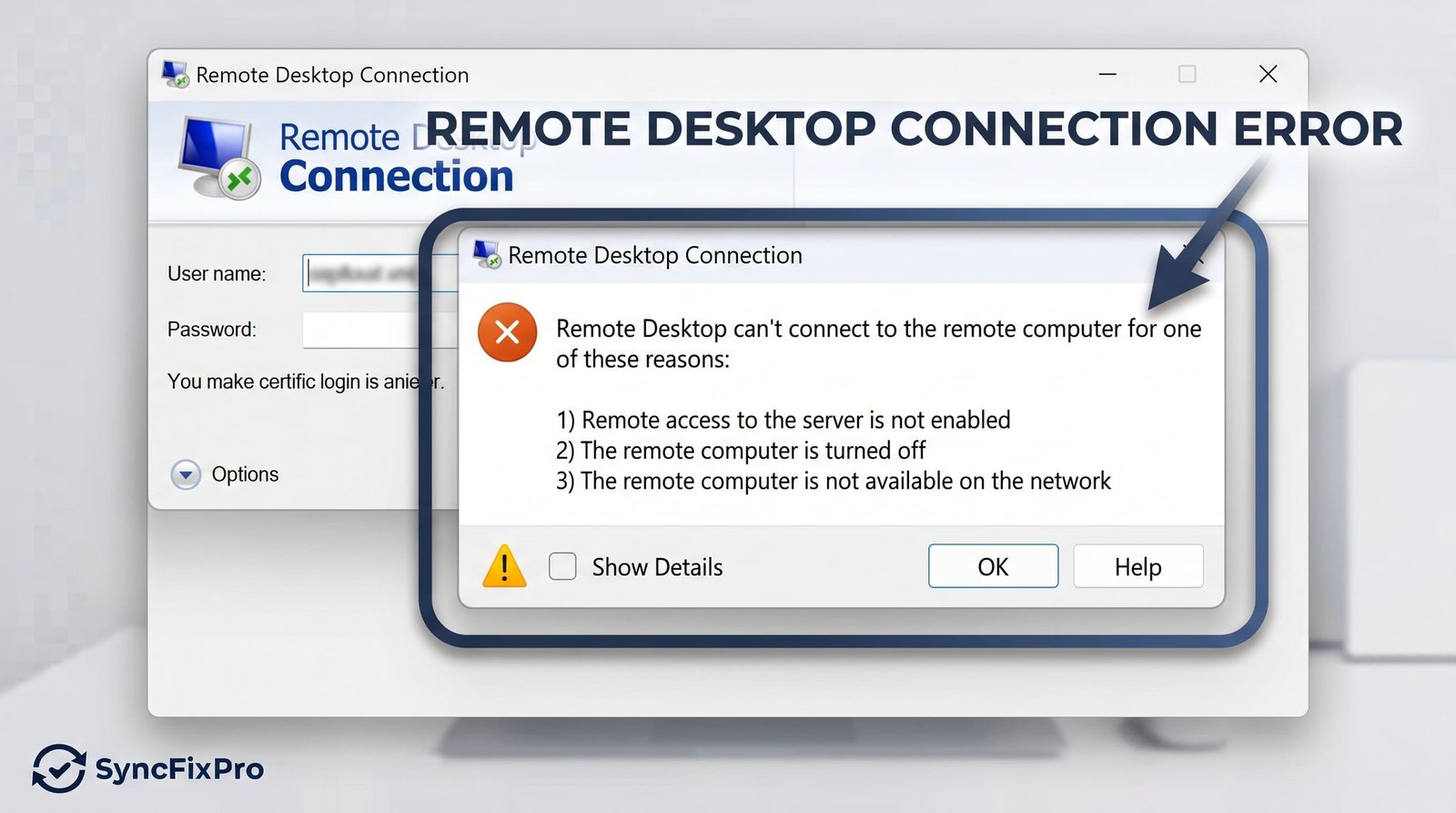
You open Remote Desktop, type the PC’s name, and wait. Then you get “Remote Desktop can’t connect to the remote computer.”
Or a timeout. Or an authentication error that makes no sense. That’s the classic remote desktop not working over VPN problem. I’ll walk through it the way I’d walk a colleague through it. We’ll find out which layer is failing first and then fix that layer. Guessing at settings wastes an afternoon.
What Is the “Remote Desktop Not Working Over VPN” Problem?
Remote Desktop not working over VPN means your VPN connects, but the RDP session to a work PC or server times out or fails. RDP uses port 3389, so any break in routing, DNS, firewall rules or transport settings can stop it.
Remote Desktop Protocol, or RDP, is the Windows feature that lets you control another PC over a network. It normally runs on port 3389.
Inside the office, the two machines sit on the same network and everything just works. Over a VPN, your traffic goes through a tunnel, and several things now have to line up.
Microsoft’s own forums are full of the same story. One admin reported that they could connect to Windows 10 and Server 2022 machines over an SSL VPN but not to Windows 11 ones, though Windows 11 machines worked from the same physical network.
Why Does Remote Desktop Fail Over a VPN?
Remote Desktop fails over a VPN because of routing, DNS, firewall scope or transport settings. Split tunneling can leave port 3389 outside the tunnel, DNS can fail to resolve the host’s name, and Windows 11’s UDP behavior can break sessions that older versions handle.
Most cases of remote desktop not working over VPN trace back to one of these causes, roughly in the order I see them.
Routing. SonicWall’s troubleshooting guide lists split tunneling misconfiguration as a cause, where RDP traffic on TCP 3389 isn’t routed through the tunnel.
DNS. The same guide points out that the client may be unable to resolve the server’s hostname through the VPN’s DNS configuration. The tunnel works, but the name doesn’t resolve.
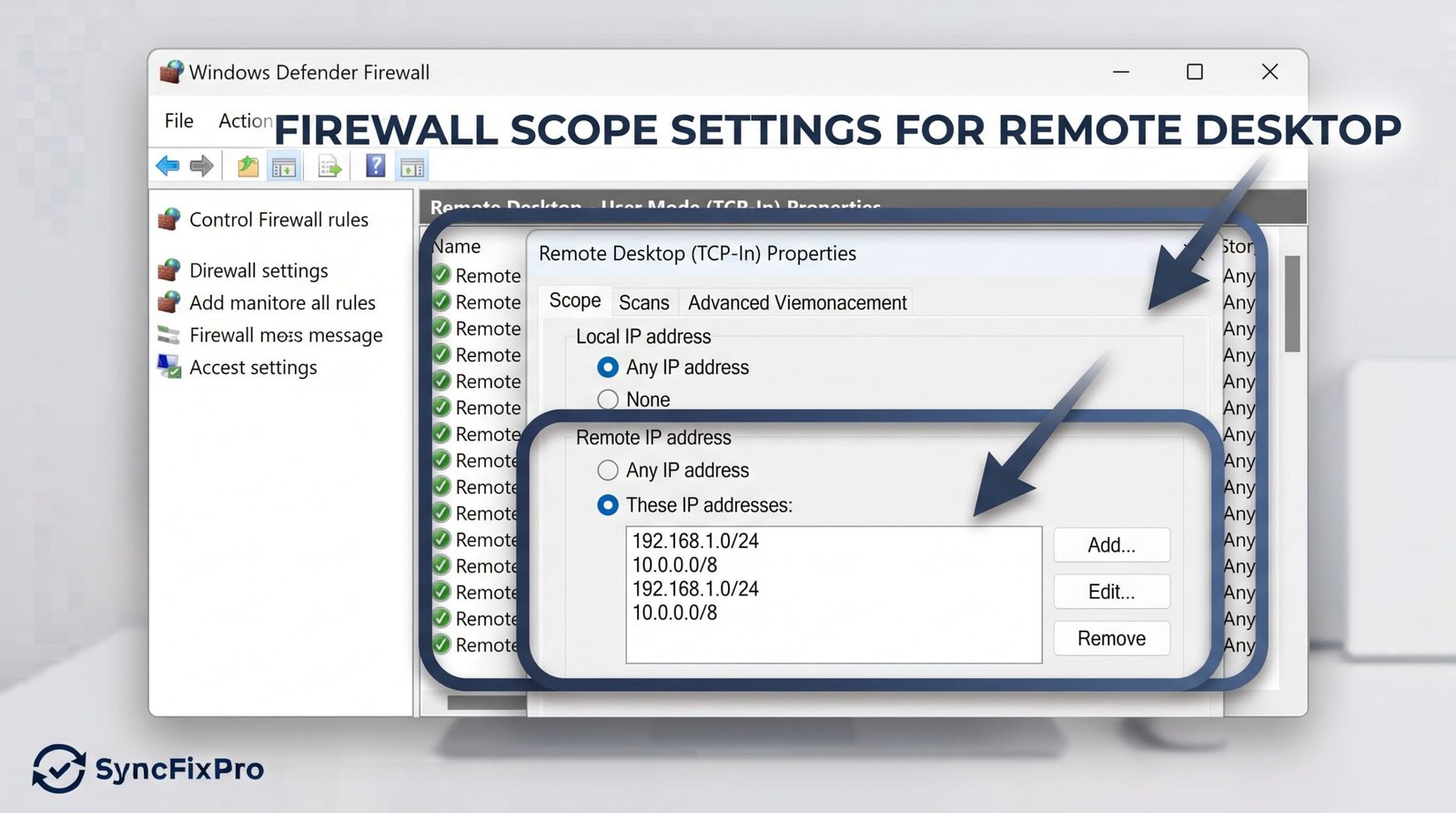
Firewall scope. Windows Firewall has a built-in rule for Remote Desktop. SonicWall’s guide says the rule’s remote address scope needs to include the VPN client subnet. If it only allows your local subnet, VPN users get blocked.
Windows 11 and UDP. A reply on Microsoft’s forum says Windows 11 uses RDP over UDP, called RDP Shortpath, more aggressively than older versions. Some VPN setups handle UDP badly.
NLA. AnyViewer notes that some VPN clients may not support Network Level Authentication.
How Do You Fix Remote Desktop Not Working Over VPN?
Confirm the basics, test by IP address instead of name, check that port 3389 is reachable, then check routing and the firewall rule on the host. This order shows you which layer is failing before you change any settings.
Work through these in order. Don’t skip the testing steps. They save time.
- Check the basics. Is the VPN really connected? Is the host PC powered on and awake? Is Remote Desktop switched on? On the host, go to Settings → System → Remote Desktop. One catch that trips people up: Windows 11 Home can connect out to other PCs but can’t act as the host. You need Pro or Enterprise on the PC you’re connecting to.
- Connect by IP address, not name. Open Remote Desktop Connection (mstsc) and type the host’s IP. If that works and the name doesn’t, you have a DNS problem. Try the fully qualified name, or ask IT which DNS suffix the VPN should supply. Run nslookup hostname while connected to see what’s coming back.
- Test the port: Open PowerShell and run:
Test-NetConnection -ComputerName 10.0.0.25 -Port 3389
Use the host’s real IP. If TcpTestSucceeded says True, the network path is fine and the problem is on the host or in Windows. If it says False, something is blocking 3389 on the way. - Check the routes. Run route print and look for the remote subnet. If you use split tunneling, make sure that subnet goes through the VPN. If the route is missing, RDP traffic leaves through your normal connection and never reaches the host. See our guide on NordVPN split tunneling not working if your VPN app handles the split.
- Check the firewall rule on the host. Open Windows Defender Firewall with Advanced Security → Inbound Rules and find Remote Desktop – User Mode (TCP-In). Open its properties, go to the Scope tab, and confirm the VPN client range is in the remote IP list. A VPN adapter classed as a Public network can also be treated differently by the firewall rule, so check the rule’s profile too.
Method 2: How Do You Fix Windows 11 RDP Over UDP?
To fix Windows 11 RDP over a VPN, set the host to use TCP only through Group Policy. Windows 11 prefers UDP, which some VPN tunnels handle poorly. Forcing TCP makes the session behave like it does on older Windows versions.
This is the fix I’d try first when remote desktop is not working over VPN on Windows 11 hosts but Windows 10 hosts connect fine. A forum answer on the same Microsoft thread suggests a local or group policy setting that selects the RDP transport protocol and can be set to TCP only.
On the host PC:
- Press Win + R, type gpedit.msc, and press Enter. (Pro or Enterprise only.)
- Go to Computer Configuration → Administrative Templates → Windows Components → Remote Desktop Services → Remote Desktop Session Host → Connections.
- Open Select RDP transport protocols.
- Set it to Enabled and choose Use only TCP.
- Apply it, then restart the PC.
Policy names can move between Windows builds, so verify the path on yours. If an IT team manages the PC, ask them to push this setting instead of editing it yourself.
Method 3: What Are the Advanced Fixes?
If the standard fixes fail, check MTU, review NLA, look at whether the host itself runs a VPN, and consider changing the listening port as a last resort. Each one needs care, so make a single change at a time and test.
MTU problems. If the session starts and then hangs, or times out after connecting, packet size can be the culprit. Our VPN connected but no internet fix covers the MTU test step by step.
NLA. Network Level Authentication adds a security check before the session starts. I wouldn’t switch it off on a production machine. If IT approves it for a short test, turn it back on straight away.
The host runs its own VPN. This catches people out. If the PC you’re connecting to is itself routed through a consumer VPN, it gets a different internet address, and inbound connections to your home address don’t reach it. One user on Microsoft’s forum described exactly this: they could connect from their phone only when the PC wasn’t on the VPN, and got error 0x104 when it was. The practical options are to turn that VPN off on the host, exclude RDP traffic with split tunneling, or connect through your company’s VPN instead. Our guide on setting up a VPN at home for remote work explains the difference.
Changing the RDP port. Some admins report that using a different port than 3389 works when the standard one is blocked. It involves a registry edit and a new firewall rule, so treat it as a last resort and ask IT first.
Use a different tool. If you can’t change the VPN and need access today, a remote access tool that doesn’t need a VPN may be easier.
How Do You Prevent Remote Desktop VPN Problems?
To prevent RDP problems over a VPN, document the VPN subnet and DNS settings, keep a short test checklist, retest after major Windows updates, and never expose port 3389 directly to the internet. Use the VPN as the way in.
A few habits make a big difference:
- Keep a note of the VPN subnet and the host IPs your team uses.
- Use names that resolve over the VPN, and test them after any DNS change.
- Retest after big Windows or VPN client updates.
- Keep the host’s firewall rule scope up to date.
- Keep a three-line checklist: ping the IP, run Test-NetConnection, then try the name.
- Never open 3389 straight to the internet. That’s what the VPN is for.
Slow sessions are a separate problem. Time a file transfer with the VPN on and off, as in our Google Drive slow upload VPN fix.
Conclusion
Find the failing layer first. Test by IP, test the port, then check routes, the firewall scope and the Windows 11 transport setting. That is usually all it takes to clear remote desktop not working over VPN.
FAQ
Here are the most frequently asked questions with their answers.
Still have more questions?
contact us through email or just leave a comment.
Contact Us