

Quick Answer: Why is my VPN so slow? It encrypts your traffic and sends it through another server, which costs some speed, but the loss should be modest. If it’s much worse, switch to a nearer server, change the protocol, use a wired connection and lower the MTU. Measure your speed with the VPN off and on first, so you know how big the loss really is.
You turn the VPN on and the whole day slows down.
Pages take forever. Video calls stutter. A file that uploaded in two minutes yesterday is now crawling. I hear this from remote workers all the time, and the first question I ask is always the same: how slow, compared with what? Some slowdown is normal. A lot of slowdowns usually has a fixable cause.
Here are seven fixes, in the order I’d try them. The first one tells you whether you have a real problem at all.
How Much Slower Should a VPN Be?
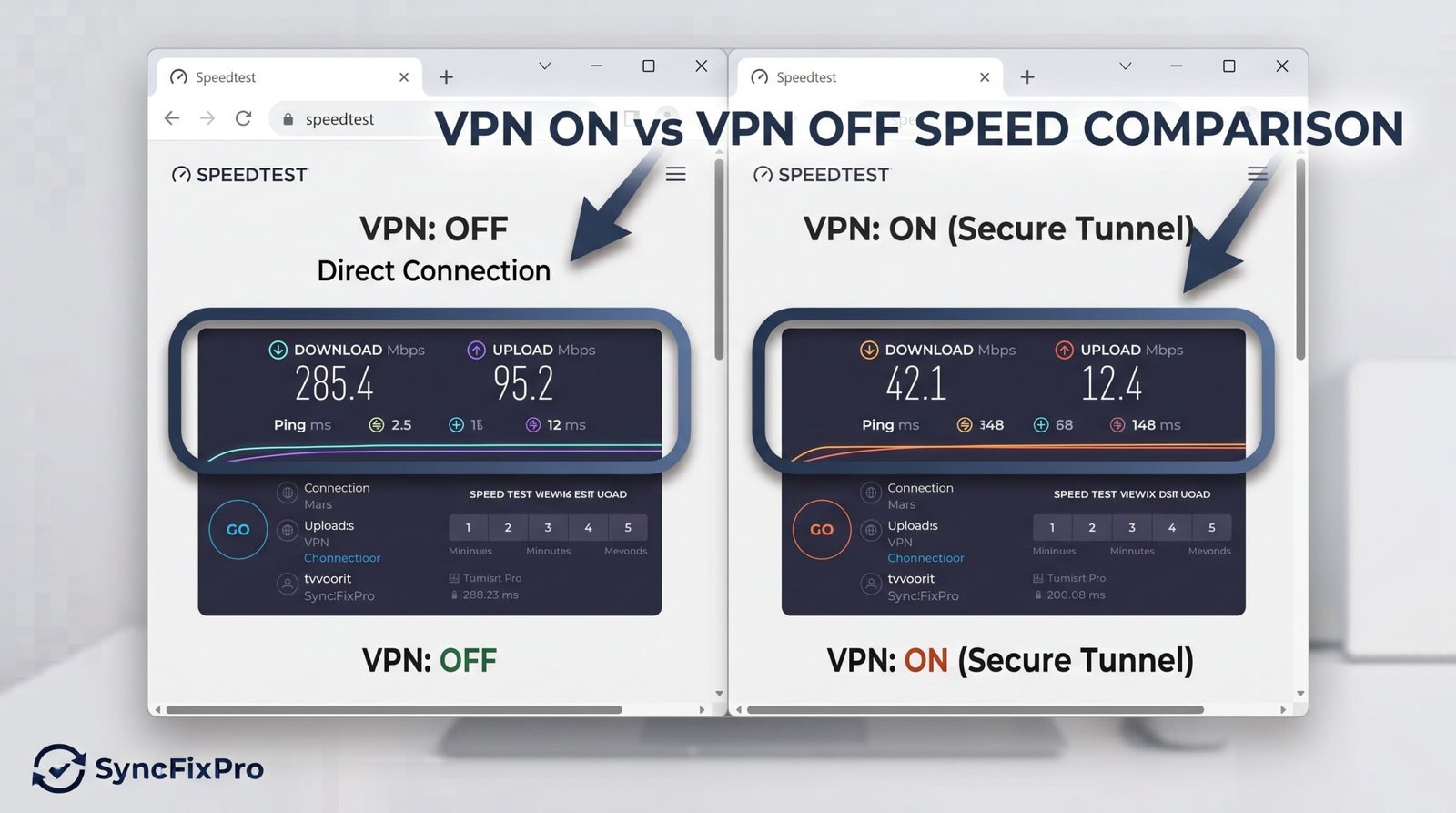
A VPN should cost you a modest slice of your speed, typically 10–20% compared with your connection without it. Encryption adds work, and routing through another server adds distance. A much bigger drop points to a fixable cause such as a distant server, a poor protocol or a network limit.
iVPN’s support team puts it this way: a VPN can’t be faster than your underlying connection, and the loss from encrypting each packet is usually around 10–20%.
There’s one exception worth knowing. If your VPN runs on a router, the numbers can look worse. The router maker GL.iNet says it’s normal for a router’s VPN speed to land at 30–50% of its advertised maximum under typical network conditions.
So the first job is to measure. Everything else depends on it.
Why Is My VPN So Slow?
A VPN is slow when the server is far away or overloaded, the protocol is a poor fit, your device or router is struggling with encryption, or your own connection is the real bottleneck. Packet size, firewalls and ISP behavior can add to it.
Here’s what I check, roughly in order of how often I see it.
Distance. If the VPN server is far from you, data travels farther, which raises latency and lowers speed.
Server load. When many users share one server, it gets congested and everyone slows down.
Protocol. OpenVPN and WireGuard behave differently, and one may suit your network better than the other.
Your hardware. iVPN notes that some devices can’t deliver high speeds because of the heavy encryption overhead.
Security software. Firewall or antivirus software can slow VPN traffic by filtering or scanning packets.
Your own connection. If your base speed is low, the VPN will be too. A VPN won’t make a slow line fast.
How Do You Fix a Slow VPN? 7 Fixes
To fix a slow VPN, measure your speed with it off and on, switch servers, change protocol, use a wired connection, check security software, lower the MTU and use split tunneling. Test after each change so you know which one helped.
1. Measure the Loss First
Run a speed test with the VPN off. Then connect, pick a nearby server and run it again.
Write both numbers down. If the VPN speed is within 10–20% of the baseline, nothing is broken. If it’s far lower, keep going.
You can also plug the numbers into our VPN Speed Loss Calculator to see the percentage and how it compares with a typical result.
2. Switch to a Closer, Less Busy Server
This is the quickest win. Most apps let you pick a server by country or city. Choose the nearest one, or one your app marks as low load, then retest.
iVPN lists changing servers as its first troubleshooting step.
3. Change the VPN Protocol
Open your VPN app’s settings and look for Protocol or Connection. Try WireGuard (NordVPN calls its version NordLynx), then OpenVPN UDP, then OpenVPN TCP.
iVPN also lists changing the port and protocol among its steps. Menu names differ between apps, so check yours. If a protocol change breaks your connection, see our VPN connected but no internet fix.
4. Use a Wired Connection and Restart Your Router
Wi-Fi adds its own variation. Plug in an Ethernet cable and test again. ForestVPN’s guide says connecting directly to the router by cable can noticeably improve speeds.
Restart your modem and router while you’re at it. Over time they can slow down, and a restart may help.
5. Check Your Firewall, Antivirus and Background Apps
Security software can scan VPN traffic. Add your VPN app to the exceptions list, or test with the scanner paused for a minute, then switch it back on.
Also look at what else is using your upload bandwidth. OneDrive, Dropbox and backup tools all compete with the VPN. Our Google Drive slow upload VPN fix has a timing routine that separates VPN overhead from a busy line.
6. Lower the MTU
Some networks, especially mobile ones, limit packet size. GL.iNet suggests changing the MTU from 1420 to 1380 or 1280 in the VPN client options.
On Windows, you can test your own value:
- Open Command Prompt as administrator.
- Run ping google.com -f -l 1472. If it says the packet needs to be fragmented, lower 1472 by 10 and repeat.
- Add 28 to the largest working number. That is your MTU.
- Set it with netsh interface ipv4 set subinterface “Wi-Fi” mtu=1400 store=persistent, using your adapter name and value.
To restore the default, use mtu=1500. The full walkthrough is in our VPN connected but no internet fix.
7. Use Split Tunneling
You don’t have to send everything through the VPN. Split tunneling lets you route only the apps that need it, such as your work tools, and keeps heavy traffic like cloud sync outside.
Check your company’s policy first. If the VPN is for work access, IT may want everything inside it. NordVPN offers this on Windows and Android only. If it misbehaves, see NordVPN split tunneling not working.
How Do You Keep Your VPN Fast?
To keep a VPN fast, record a baseline speed, pick servers by distance and load, keep the VPN app and device updated, use a wired connection for big transfers and plan long uploads. Retest whenever the speed seems off.
These habits save me the most time:
- Keep a baseline speed with the VPN off and on.
- Pick the nearest server by default.
- Update the VPN app and your operating system.
- Use Ethernet for large transfers.
- Plan big uploads. Our Cloud File Size & Transfer Time Calculator tells you how long a file should take.
- If the VPN is for work, make sure it’s set up correctly in the first place. See how to set up a VPN at home for remote work.
If a specific tool still struggles over the tunnel, our guide on Remote Desktop not working over VPN on Windows 11 covers that case.
Conclusion
Measure first, then change one thing at a time. Most slow VPNs come down to server distance, protocol or a network limit. Keep a baseline so you can tell when something has changed.
FAQ
Here are the most frequently asked questions listed below:
Still have more questions?
Contact us through our contact page or leave a comment below.
Contact Us